
MIDI & Audio
Connect hardware controllers, feed in live audio, and let your visuals respond to sound in real time. Ghost Arcade supports MIDI mapping, audio-reactive parameters, beat detection, and built-in LFO modulation to give you hands-on, expressive control over every layer and effect.
MIDI Control
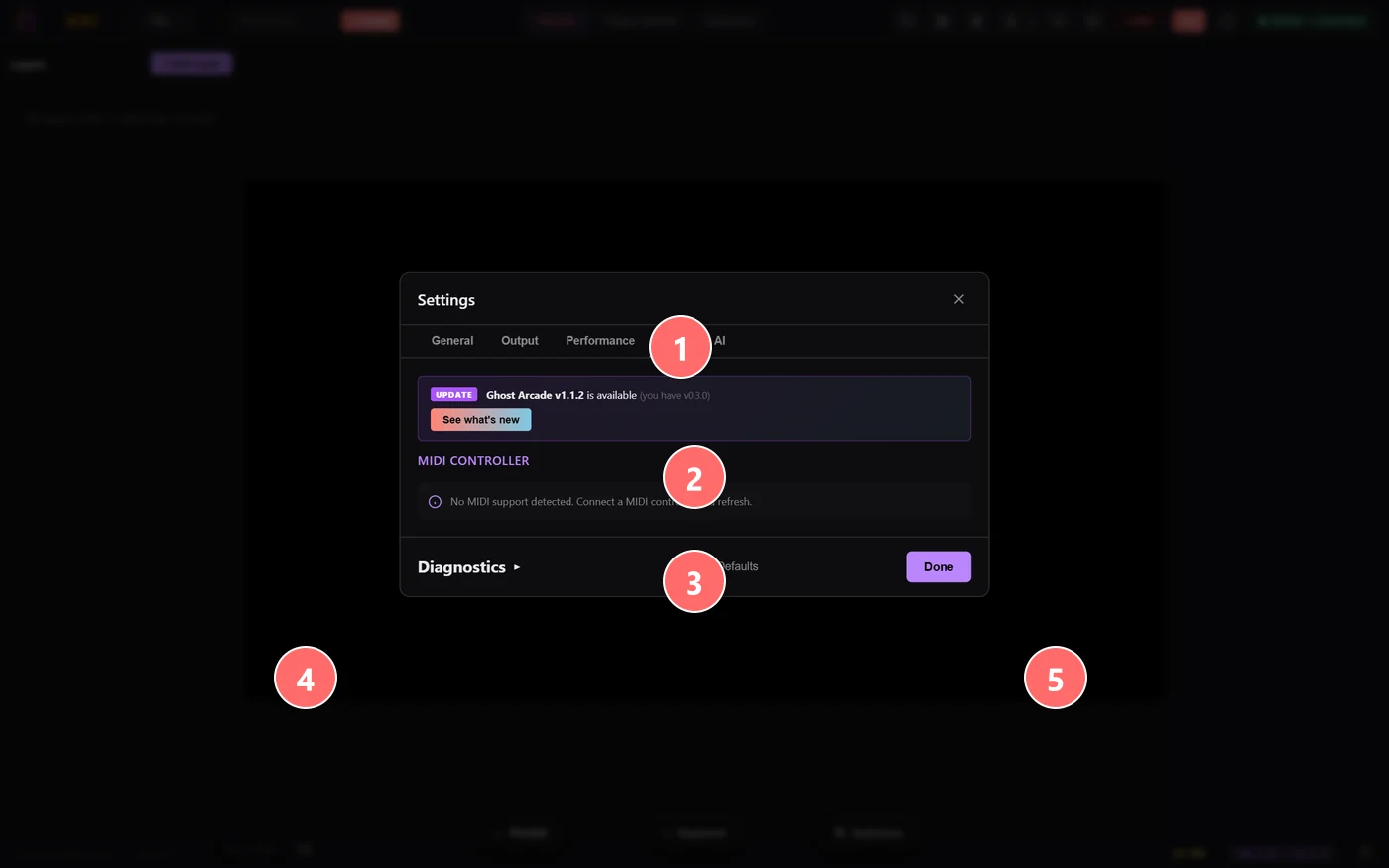
- 1Settings tabs — General, Output, Performance, MIDI, AI. MIDI is selected.
- 2MIDI Controller box — shows detected hardware. Connect a USB or Bluetooth MIDI controller and the status updates here.
- 3Status message — "No MIDI support detected" means no Web MIDI access yet. Plug a controller in and click Re-probe (top right of GPU Acceleration when on Performance tab) or reload the app.
- 4Diagnostics — expand to see raw device list, capabilities, and message log for debugging connection issues.
- 5Done — closes the settings modal and applies any changes.
MIDI Learn Mode
Mapping a hardware control to a software parameter takes two clicks and one physical gesture. Right-click any parameter slider, toggle, or dropdown and select MIDI Learn from the context menu. The parameter begins listening for incoming MIDI. Move a knob, push a fader, or press a button on your controller—the mapping is created instantly. The parameter now follows the hardware control in real time.
While MIDI Learn is active, the parameter pulses to indicate it is waiting for input. Press Escape to cancel without creating a mapping. You can also enter MIDI Learn from the global MIDI settings panel by clicking the learn icon next to any listed parameter.
Mappings are automatically saved with your project file and restored when the project is reopened.
Supported MIDI Messages
Ghost Arcade responds to the three most common MIDI message types. Each can be mapped to any parameter in the application.
| Message | Range | Best For |
|---|---|---|
| CC (Control Change) | 0 – 127 | Knobs and faders. Continuous control of sliders, opacity, speed, color values. |
| Note On / Off | Velocity 0 – 127 | Buttons and pads. Toggle visibility, trigger clips, switch presets. |
| Pitch Bend | 0 – 16383 | High-resolution continuous control. Smooth position or rotation sweeps. |
Multi-Device Support
Connect as many MIDI controllers as your system supports—there is no device limit. Each connected device appears in the MIDI settings panel with its name and port. When creating a mapping, Ghost Arcade records which device sent the message so that identically-numbered CCs on different controllers remain independent.
Channel filtering is available per mapping. By default a mapping responds to all channels (1–16). Restrict it to a single channel when multiple instruments share a single MIDI device, or when you want the same CC number on different channels to control different parameters.
Mapping Management
Open the MIDI settings panel to see every active mapping in a scrollable list. Each entry shows the device name, MIDI channel, message type, control number, and the target parameter. Delete individual mappings with the trash icon, or clear all mappings at once.
Mapping presets let you save and recall entire controller layouts. Save a preset for your studio controller, another for a compact live rig, and switch between them without remapping every parameter. Presets are stored locally and can be exported as JSON files to share between machines or back up your configuration.
When you load a preset, existing mappings are replaced. If the referenced MIDI device is not currently connected, those mappings appear dimmed and activate automatically when the device is plugged in.
Audio Reactivity
Audio Input
Ghost Arcade can analyze any audio source your system provides. Open Settings and choose your input device from the audio dropdown. Supported sources include:
- •Microphone — capture ambient sound or a direct feed from a mixing board.
- •System audio (Windows) — route the output of any application (DJ software, DAW, media player) directly into Ghost Arcade without external cables.
- •Line-in — connect an audio interface or mixer output for clean, low-latency signal.
A real-time level meter in the settings panel confirms signal is present. If the meter stays flat, check your operating system’s audio permissions and make sure the correct device is selected.
Frequency Analysis
Incoming audio is split into six frequency bands using FFT analysis. Each band outputs a normalized value from 0 to 1 that you can route to any parameter.
| Band | Range | Typical Source |
|---|---|---|
| Sub-bass | 20 – 60 Hz | Kick drum fundamentals, deep bass synths. |
| Bass | 60 – 250 Hz | Bass guitar, bass synth body, low toms. |
| Low-mid | 250 – 500 Hz | Vocal warmth, guitar body, snare weight. |
| Mid | 500 Hz – 2 kHz | Lead vocals, melodic instruments, presence. |
| High-mid | 2 – 6 kHz | Vocal consonants, guitar attack, snare crack. |
| Treble | 6 – 20 kHz | Hi-hats, cymbals, air, sibilance. |
Beat Detection
Ghost Arcade continuously analyzes the audio input to detect tempo. The detected BPM is displayed in the transport bar and automatically drives the built-in sequencer, keeping visual transitions locked to the music.
Beat detection works best with rhythmic material—electronic music, hip-hop, pop, or anything with a clear kick pattern. You can also tap-tempo manually or type a BPM value directly if the auto-detection struggles with irregular rhythms.
Beyond driving the sequencer, detected beats can trigger clip changes in VJ mode, advance through compositions on every bar, or pulse individual parameters on the downbeat.
LFO Modulation
Every parameter can be driven by a built-in Low Frequency Oscillator. The LFO generates a continuously oscillating value that modulates the parameter around its current setting. Four waveform shapes are available:
- •Sine — smooth, organic oscillation. Ideal for gentle breathing effects.
- •Triangle — linear ramp up and down. Slightly more mechanical than sine.
- •Square — hard on/off toggle between min and max. Great for rhythmic strobing.
- •Sawtooth — ramps up linearly, then resets. Creates a sweeping buildup effect.
The LFO rate can run in free mode (set in Hz) or sync to the detected BPM with musical divisions: 1/4 note, 1/2 note, 1 bar, 2 bars, and more. BPM-synced LFOs stay locked to the beat even when the tempo drifts.
Adjust the LFO depth to control how far the value swings from center. At zero depth the parameter behaves normally; at full depth it sweeps across its entire range.
Audio-Reactive Parameters
Any slider parameter in Ghost Arcade can be linked to an audio frequency band. Right-click a slider and select Link to Audio to open the audio link configuration. Choose which frequency band drives the parameter, then fine-tune the response:
- •Frequency band — select one of the six bands (sub-bass through treble) to react to.
- •Sensitivity — amplify or attenuate the incoming audio level before it reaches the parameter. Increase sensitivity for quiet sources, decrease it to tame loud peaks.
- •Smoothing — controls how quickly the parameter responds to changes. Low smoothing gives snappy, percussive reactions. High smoothing produces slow, flowing motion.
Audio-linked parameters display a small waveform icon on their slider. The slider thumb moves in real time to show the current audio-driven value. You can still adjust the base value manually—the audio modulation is added on top.
Combine audio linking with MIDI control for maximum expression: use a MIDI fader to set the base value of a parameter while audio reactivity adds dynamic motion on top. Stack an LFO as well for layered, evolving textures that stay musical.