Mobile Control
Control Ghost Arcade from any device with a web browser. Phone, tablet, or second computer. Works over WiFi with no internet connection required — it even works with a mobile hotspot.
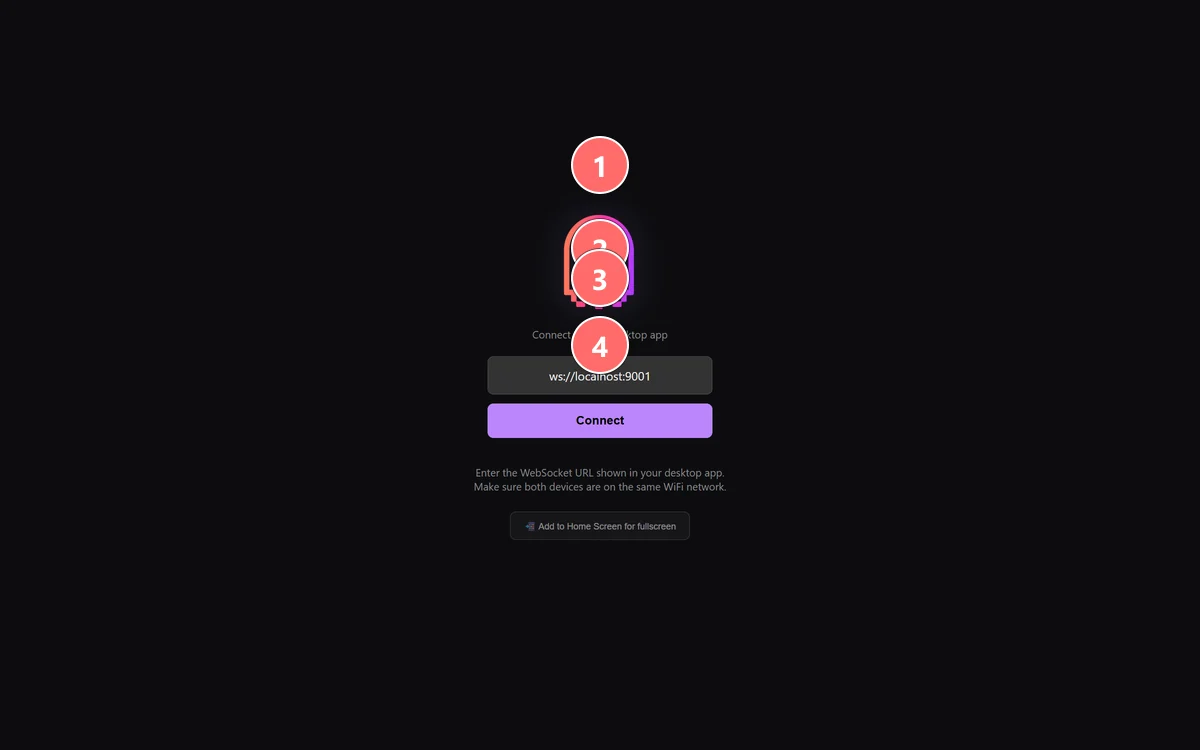
- 1Ghost Arcade mobile — the companion web app loaded from the desktop’s LAN HTTP server. Same Svelte code as the desktop, mobile-route only.
- 2WebSocket URL — read the value off your desktop’s QR code button or status pill; both devices must be on the same Wi-Fi network.
- 3Connect — opens the WebSocket bridge to the desktop. Once connected, you get clip triggers, mapping warps, opacity, blend, and macros.
- 4Add to Home Screen — install as a PWA so it launches fullscreen without browser chrome.
Setup
The Ghost Arcade desktop app runs a local WebSocket server that your mobile device connects to. No cloud services, no accounts — everything stays on your local network.
- Open the Mobile panel — In the desktop app, open the Mobile Control panel from the sidebar. The app starts a WebSocket server and displays a connection URL along with a QR code.
- Connect to the same network — Make sure your mobile device and the computer running Ghost Arcade are on the same WiFi network. A dedicated router or hotspot both work.
- Scan the QR code or enter the URL — On your phone or tablet, scan the QR code with your camera app or manually type the URL shown in the Mobile panel into any web browser.
- Start controlling — The mobile interface loads instantly. Changes you make on the phone appear on the desktop in real time, and vice versa.
No internet required. The connection is entirely local. You can use this in a venue with no WiFi at all — just enable a mobile hotspot on the rendering laptop and connect your phone to it.
Mobile Interface
The mobile interface is a touch-optimized layout designed for quick access to the controls you need during a live show. It mirrors the desktop state in real time.
Layer List
View and select active layers. Tap to select, long-press to toggle visibility. Layer order matches the desktop.
Parameter Sliders
Touch-friendly sliders for every parameter on the selected layer. Drag to adjust, tap the value to type a number directly.
Warp Point Adjustment
Drag corner and mesh warp points with your finger. Walk up to the projection surface and fine-tune mapping on the spot.
Clip Triggering Grid
Tap to trigger VJ clips and compositions. Grid layout mirrors the desktop VJ mode for muscle-memory consistency.
Master Controls
Master opacity, blackout toggle, freeze frame, and BPM tap. Always visible at the top of the mobile interface.
Warp Adjustment
One of the most powerful uses of mobile control is adjusting warp points from the projection surface itself. Instead of running back and forth between your laptop and the wall, walk up to the surface and drag points with your finger.
- Corner warp — Drag any of the four corner pins to align your output to a surface.
- Mesh warp — Touch and drag individual mesh grid points for curved or irregular surfaces.
- Per-layer warp — Select a specific layer from the layer list, then adjust its warp independently.
- Pinch to zoom — Zoom in on the warp view to make fine adjustments on dense mesh grids.
Tip: For large venue setups, assign one person to the projection surface with a phone while another stays at the laptop. Both see changes in real time.
Clip Triggering
Trigger VJ clips and compositions directly from your mobile device. The grid layout matches the desktop VJ mode so your muscle memory carries over.
- Tap to trigger — Tap any clip cell to trigger it. Active clips are highlighted to match the desktop state.
- Compositions — Trigger saved compositions to recall entire multi-layer states with one tap.
- All layers and columns — Scroll through every layer and column of the VJ grid (configurable up to 32 layers x 64 columns). Each cell shows its loaded clip in the same order as the desktop.
Parameter Control
Every parameter available on a layer in the desktop app is also controllable from the mobile interface. Changes sync in real time in both directions.
- Touch sliders — Drag to adjust. Sliders are sized for finger interaction with generous touch targets.
- Two-way sync — If someone adjusts a parameter on the desktop, the mobile slider updates instantly. If you change it on mobile, the desktop reflects it immediately.
- Color pickers — Color parameters open a touch-friendly color picker.
- Toggle switches — Boolean parameters display as tap-to-toggle switches.
- Dropdown selectors — Preset and mode parameters open a native mobile dropdown menu.
Network Tips
Mobile control works on any local network, but a few choices can make the experience noticeably smoother — especially during live performance.
- Use 5 GHz WiFi — The 5 GHz band has significantly lower latency and less interference than 2.4 GHz. Most modern routers broadcast both; connect both devices to the 5 GHz network.
- Dedicated router for large venues — At festivals or large events, venue WiFi is often congested. Bring a small dedicated router and create your own network just for Ghost Arcade control.
- Hotspot mode — No router at all? Enable a WiFi hotspot on the rendering laptop and connect your phone to it. This creates a direct link between the two devices with minimal latency.
- No internet needed — The WebSocket connection is local only. The mobile interface is served by the desktop app. Nothing leaves your network.
- Firewall check — If the mobile device cannot connect, make sure your system firewall allows incoming connections on port
9001(the default companion server port). Windows may prompt for network access the first time.
Quick test: If you can load the control URL in a browser on the same machine (localhost), the server is running. If another device on the same network cannot reach it, the issue is firewall or network isolation.