
Performance Tuning
If Ghost Arcade feels laggy on your machine, you have two levers: switch the app to your dedicated GPU, or step down the editor's render budget via Settings → Performance. This page walks through both, plus the video codecs that decode cheapest in the browser so your media library doesn't fight you.
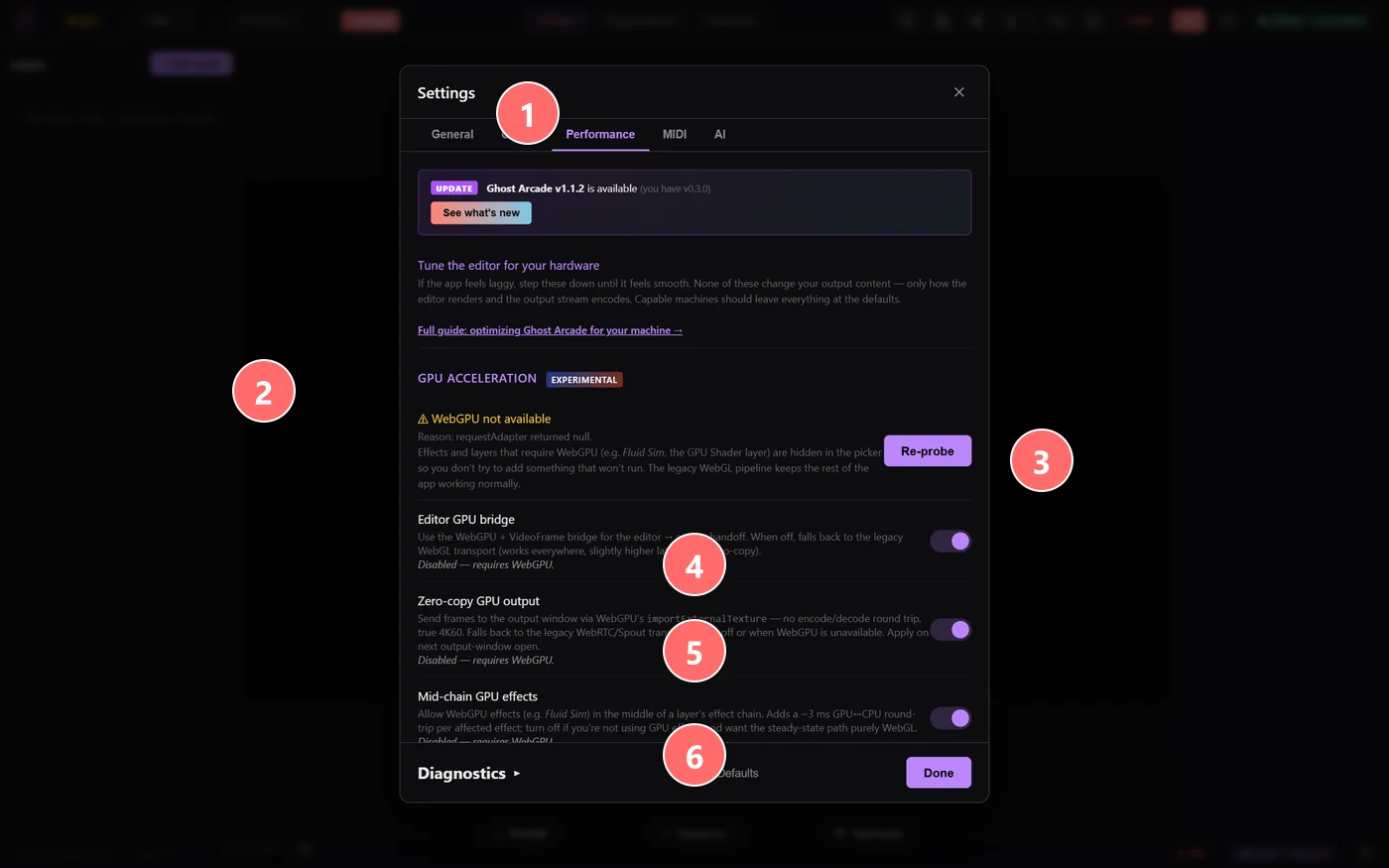
- 1Performance tab — the GPU + encoder settings live here, separate from General/Output/MIDI/AI.
- 2GPU ACCELERATION — three toggles that opt into WebGPU code paths. Experimental — disabled by default.
- 3Re-probe — re-detects WebGPU availability after driver updates or starting Chrome with --enable-unsafe-webgpu.
- 4Editor GPU bridge — uses a WebGPU bridge for editor rendering. Lower latency on capable GPUs; falls back to WebGL2 if unsupported.
- 5Zero-copy GPU output — sends frames to the output window via GPUExternalTexture without an encode/decode round-trip. Requires the Editor GPU bridge.
- 6Mid-chain GPU effects — runs supported effects on WebGPU instead of WebGL2. Higher throughput but limited effect coverage today.
If you're seeing the integrated-GPU warning banner at the top of the editor: open Settings → Performance and start by setting Max Bitrate to 40 Mbps and Video Codec to Force H.264. Test. If still laggy, drop Shader Quality to High and VJ Preview Resolution to 640 px.
1. Switching to Your Dedicated GPU
Most laptops with dual graphics (Intel + NVIDIA, Intel + AMD, etc.) default new apps to the integrated chip to save battery. For Ghost Arcade that's the wrong call — integrated GPUs can struggle even with moderate projects, and you'll feel it as choppy editing, slow effect rendering, and dropped output frames.
Windows
- Open Settings → System → Display → Graphics (or search “Graphics settings”).
- Click Browse under “Add an app”.
- Navigate to where Ghost Arcade is installed (usually
C:\Users\YourName\AppData\Local\Programs\Ghost Arcade\ghost-arcade.exe). - Click the new entry in the list, then Options.
- Select High performance and save.
- Restart Ghost Arcade.
VERIFY After restart, the integrated-GPU warning banner should be gone. If it persists, the override didn't take — check that you selected the right .exe (not the installer or shortcut).
macOS
Apple Silicon (M1 / M2 / M3 / M4) has one unified GPU — no switching needed. The integrated-GPU warning shouldn't appear on Apple Silicon laptops. Intel MacBook Pros with discrete Radeon graphics switch automatically when the app demands it; the system tends to make the right call.
If you're on an Intel MacBook Pro and still seeing the warning, install gfxCardStatus and force discrete mode while running Ghost Arcade.
2. Settings → Performance Walkthrough
Open Settings (gear icon) and switch to the Performance tab. Every knob defaults to full quality — dial down only the ones that buy you headroom. All settings apply live; no restart needed.
Render Quality → Shader Quality
Internal render resolution for shader layers. Full renders shaders at the project's native resolution; lower settings render at a fraction and upscale. Drop to High (0.75x) first — usually indistinguishable. Heavy raymarching shaders benefit most.
VJ Preview → Resolution / Refresh Rate
The preview pane in VJ mode does a per-frame copy from the WebGL canvas to a 2D context, which is one of the costlier ops on weak hardware. The preview is just a monitor of what's going out — users at the audience can't tell the difference between 640 px / 15 fps and full-res / 60 fps. Cap aggressively if you're on an integrated GPU. Doesn't change what's sent to the output.
Output Stream → Frame Rate
Encoder rate for the output window. Most projectors are 60 Hz, so 60 fps is the natural ceiling. Drop to 30 fps if the encoder can't keep up — halves encoder load and is indistinguishable on most content. 24 fps for cinematic feel and the lightest possible encode.
Output Stream → Max Bitrate
Same-process loopback — the bitrate doesn't go on a network wire. High bitrate just gives the encoder more headroom to run near-lossless. Lower bitrate = encoder works much less and you'll feel it. For most users 40 Mbps is indistinguishable from 80 Mbps. Drop to 20 Mbps or 10 Mbps on weak hardware.
Output Stream → Quality vs Smoothness
When the encoder can't keep up:
- Maintain Resolution (default) — drop fps first. Pixels stay crisp but motion stutters.
- Maintain Frame Rate — drop resolution first. Smooth motion but a brief blur during stress.
- Balanced — WebRTC picks. Usually fine.
Projection mappers usually want Maintain Resolution (you composed your mapping for sharp pixels). VJs running fast-motion content usually want Maintain Frame Rate (smoothness reads better in the audience).
Output Stream → Video Codec
Three options:
- Auto — tries VP9 first (best quality-per-bitrate, widely supported).
- Force H.264 — best choice if your machine has a hardware H.264 encoder (most modern Windows / Mac / Linux). Big perf bump if Auto ended up on a software-encoded codec.
- Force VP8 — maximum compatibility fallback. Use if Auto and H.264 both feel slow.
TIP Output Stream settings apply when the output window is opened — close and reopen the output after changing them.
3. Choosing Video Codecs for Your Clips
This is about the video files you drop into the library, not the output stream. Browsers decode video either in hardware (a dedicated chip block on the GPU/SoC) or in software (CPU). Hardware decode is usually 10−100x cheaper. Choose codecs your machine decodes in hardware and your library will play smoothly even with a dozen clips loaded.
Check what your machine supports: open Settings → Performance, scroll to Video Decoding at the bottom. You'll see H.264 / HEVC / VP9 / AV1 each labeled Hardware, Software, or Not supported.
The short version
- H.264 (MP4, yuv420p, Main profile) — the safe default. Hardware decode on virtually every Intel/AMD/NVIDIA/Apple chip from the last decade. Use this if in doubt.
- HEVC (MP4, yuv420p, Main profile) — better compression than H.264. Hardware decode on Apple Silicon, Intel 11th gen+, NVIDIA RTX 30+, AMD Vega+. Spotty on older laptops.
- VP9 (WebM) — hardware decode on recent Intel/AMD/NVIDIA; software fallback on older. Test before committing.
- AV1 — great compression but limited hardware support (Apple M3+, NVIDIA RTX 40+, Intel Arc). Avoid for now.
- ProRes / DNxHD / MJPEG — don't use. No browser hardware decode anywhere. CPU-killer at multi-layer projects.
ffmpeg recipes
Install ffmpeg (ffmpeg.org/download), open a terminal in your clips folder, and run one of these.
Re-encode a single clip to safe H.264:
ffmpeg -i input.mp4 -c:v libx264 -profile:v main -pix_fmt yuv420p -preset slow -crf 20 -movflags +faststart -an output.mp4
-c:v libx264— H.264 encoder-profile:v main— widely-supported profile-pix_fmt yuv420p— 4:2:0 chroma, cheaper to decode than 4:4:4-preset slow— better compression, doesn't affect playback cost-crf 20— quality target (lower = better; 18−23 is the visual sweet spot)-movflags +faststart— moves the moov atom for instant playback-an— drop audio (Ghost Arcade doesn't use it)
Batch re-encode every .mov in a folder:
# bash / zsh:
for f in *.mov; do
  ffmpeg -i "$f" -c:v libx264 -profile:v main -pix_fmt yuv420p -preset slow -crf 20 -movflags +faststart -an "h264-${f%.mov}.mp4"
done

# Windows PowerShell:
Get-ChildItem *.mov | ForEach-Object {
  ffmpeg -i $_.FullName -c:v libx264 -profile:v main -pix_fmt yuv420p -preset slow -crf 20 -movflags +faststart -an "h264-$($_.BaseName).mp4"
}
Downscale 4K to 1080p while re-encoding:
ffmpeg -i input.mp4 -vf "scale=1920:1080:flags=lanczos" -c:v libx264 -profile:v main -pix_fmt yuv420p -preset slow -crf 20 -movflags +faststart -an output.mp4
If your audience can't tell the difference between 4K and 1080p (they can't, from any reasonable projection distance), don't make your machine decode 4K. 1080p clips load 4x faster and decode 4x cheaper.
Cap framerate at 30 fps:
ffmpeg -i input.mp4 -r 30 -c:v libx264 -profile:v main -pix_fmt yuv420p -preset slow -crf 20 -movflags +faststart -an output.mp4
VJ clips rarely benefit from 60 fps. 30 fps halves decode cost and looks identical in performance.
4. Project-Level Wins
Use a project resolution that matches your output
If you're projecting at 1280 x 720, build the project at 1280 x 720 — not 1920 x 1080 or 4K. Every shader, every render target, every effect chain renders at the project resolution. Going from 1080p to 720p is a 2.25x reduction in pixel count and roughly the same reduction in render cost.
Change the project resolution in Settings → Output → Resolution or click Match Output Display to auto-snap to your projector's native pixels.
Disable layers you're not using
Each visible layer costs render time. Hide layers you're not actively performing with — the eye icon in the Layer Panel turns rendering off entirely (not just opacity to zero, which still does the work).
Watch the effects chain
Heavy effects (fluid sim, particle fields, anything blur-based) compound. If you have five layers each with three effects, that's 15 effect passes per frame. Disable effects you're not using or move them to composition-level effects (one pass over the final output instead of per-layer).
Still seeing performance issues after working through this guide? Get in touch with your GPU info (shown at the top of the editor's toolbar) and a description of what you're rendering.