
Projection Mapping
Map visual content onto physical surfaces using warping tools. From simple corner adjustments to complex mesh deformation, Ghost Arcade gives you precise control over how your content fits the real world. Every layer can be independently warped, masked, and blended for multi-projector installations.
Corner Warp
Four-point corner pin for quick perspective correction. This is the fastest way to align a layer to a flat surface that sits at an angle to the projector.
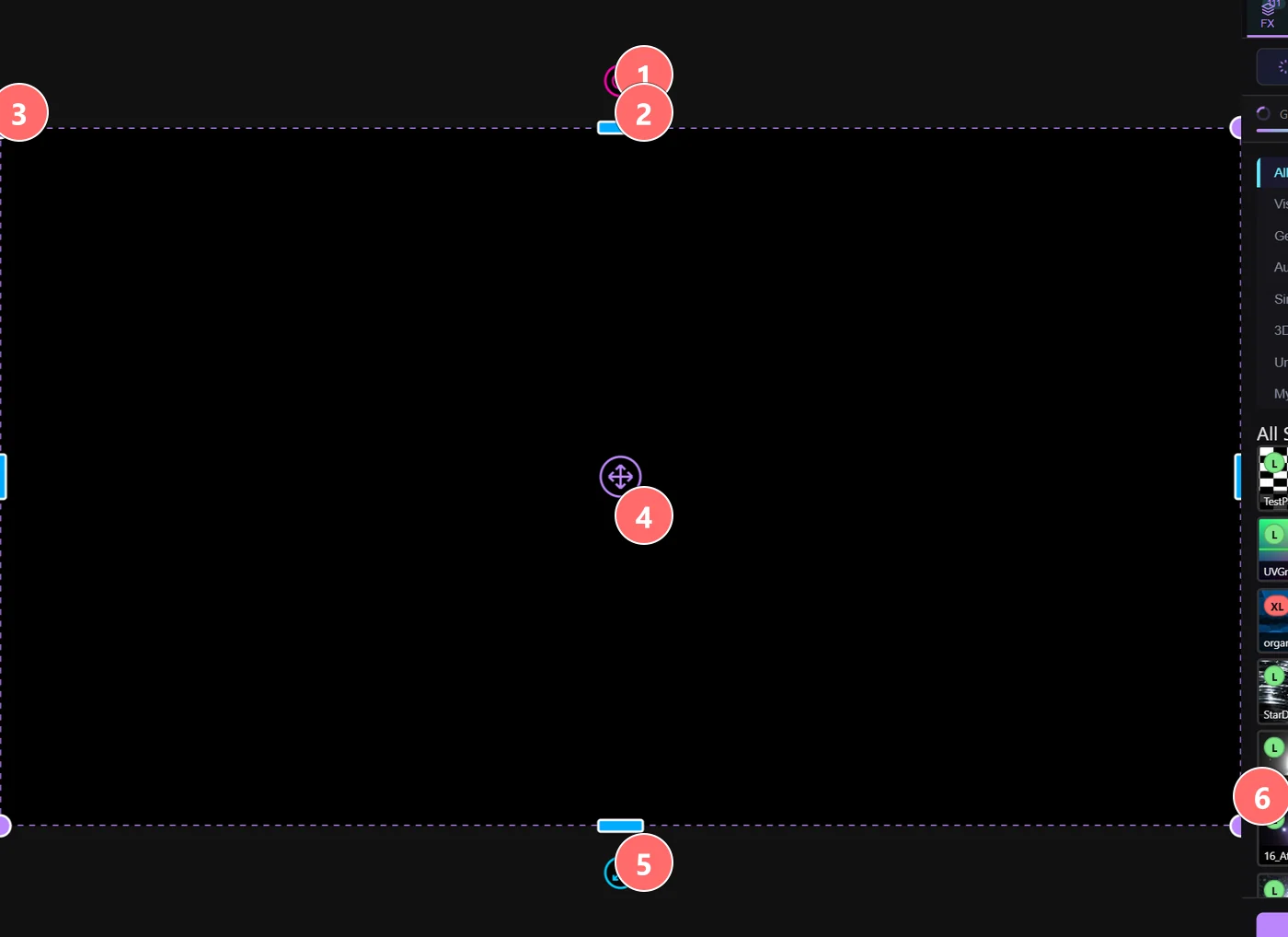
- 1Rotation handle — drag in a circle to rotate the entire layer rectangle. Hold Shift to snap to 15° increments.
- 2Top-center scale — uniform scale from the top edge while keeping the bottom anchored.
- 3Corner handle (one of 4) — drag any of the four corners to skew the layer for projection warp. Hold Shift to constrain.
- 4Move — drag the center cross to translate the layer without changing its warp.
- 5Bottom scale / rotation — same controls mirrored on the opposite edge.
- 6Bottom-right corner — fourth corner of the warp. The dashed magenta border shows the active warp boundary.
- Drag any of the four corners to match your projection surface
- Hold Shift while dragging to constrain movement to one axis
- Double-click a corner to reset it to its default position
- Best suited for flat surfaces like walls, screens, and building facades
Corner warp applies a perspective transform to the entire layer. For surfaces that need more precise shaping, switch to mesh warp.
Mesh Warp
Adjustable grid density from a simple 2x2 up to high-resolution meshes. Mesh warp lets you deform content to match curved surfaces, architectural features, and complex shapes.
- Increase grid density to add more control points where you need finer adjustment
- Drag individual mesh points to shape content around columns, arches, and irregular geometry
- Use a lower grid density for gentle curves and a higher density for tight deformations
- Mesh points interpolate smoothly between neighbors for organic-looking results
Start with a low-density mesh and increase resolution only where the surface demands it. More points give you more control but take longer to set up.
Per-Element Warp
Warp individual shapes and objects within a layer independently. Instead of deforming the entire layer as one piece, per-element warp lets you position each visual element on its own.
- Each SVG element or line drawing segment gets its own set of warp points
- Map individual shapes to separate physical surfaces within the same layer
- Useful for multi-surface installations where different objects in a scene land on different parts of a room
- Combine with layer-level warp for coarse alignment, then fine-tune individual elements
Per-element warp works with SVG layers, line layers, and any layer type that contains discrete visual objects. Select an element in the viewport to access its individual warp controls.
Layer Shape Masks
Define the visible area of a layer with shape masks. Masks crop the layer output to fit irregular projection surfaces and multi-element installations.
- Draw mask shapes directly in the viewport to define visible regions
- Use rectangular, elliptical, or freeform polygon masks
- Combine multiple masks per layer for complex cutout shapes
- Invert masks to hide specific regions instead of revealing them
- Feather mask edges for soft transitions between visible and hidden areas
Shape masks are especially useful when projecting onto non-rectangular surfaces like window frames, doorways, or sculptural elements. The mask ensures no light spills onto areas outside the intended surface.
Soft Edge Blending
Overlap projectors with feathered edges for seamless multi-projector setups. Soft edge blending gradually fades the brightness at the overlap zone so two projectors produce a uniform image.
- Enable edge blending per side: left, right, top, bottom
- Adjust blend width to match the physical overlap between projectors
- Tune the gamma curve per edge to compensate for projector brightness characteristics
- Preview blend zones with a diagnostic overlay before going live
For best results, ensure your projectors overlap by at least 10-15% of their image width. Match the projector brightness and color temperature before adjusting blend curves.
Workflow Tips
- Start with corner warp for basic alignment, then add mesh density only where needed
- Use a white test pattern for initial alignment so you can see exactly where edges fall on the surface
- Use the mobile app to adjust warp points from the projection surface itself, rather than running back to your laptop
- Save warp presets per venue so you can recall your mapping setup instantly on return visits
- Layer your approach — use layer-level corner warp for coarse fit, mesh warp for surface contours, and per-element warp for final placement
- Dim the room when fine-tuning warp points so you can see projected edges clearly against the surface
- Lock layers once mapping is complete to prevent accidental adjustments during a performance