
VJ Mode
VJ Mode transforms Ghost Arcade into a configurable clip launcher built for live performance. Organize your visuals into a grid of layers and columns (up to 32 layers x 64 columns), trigger clips on the fly, crossfade between them, and recall entire scenes with compositions and snapshots. Combined with BPM-synced sequencing, audio reactivity, and a bank of master macro knobs, VJ Mode gives you full control over your visual set without ever touching a timeline.
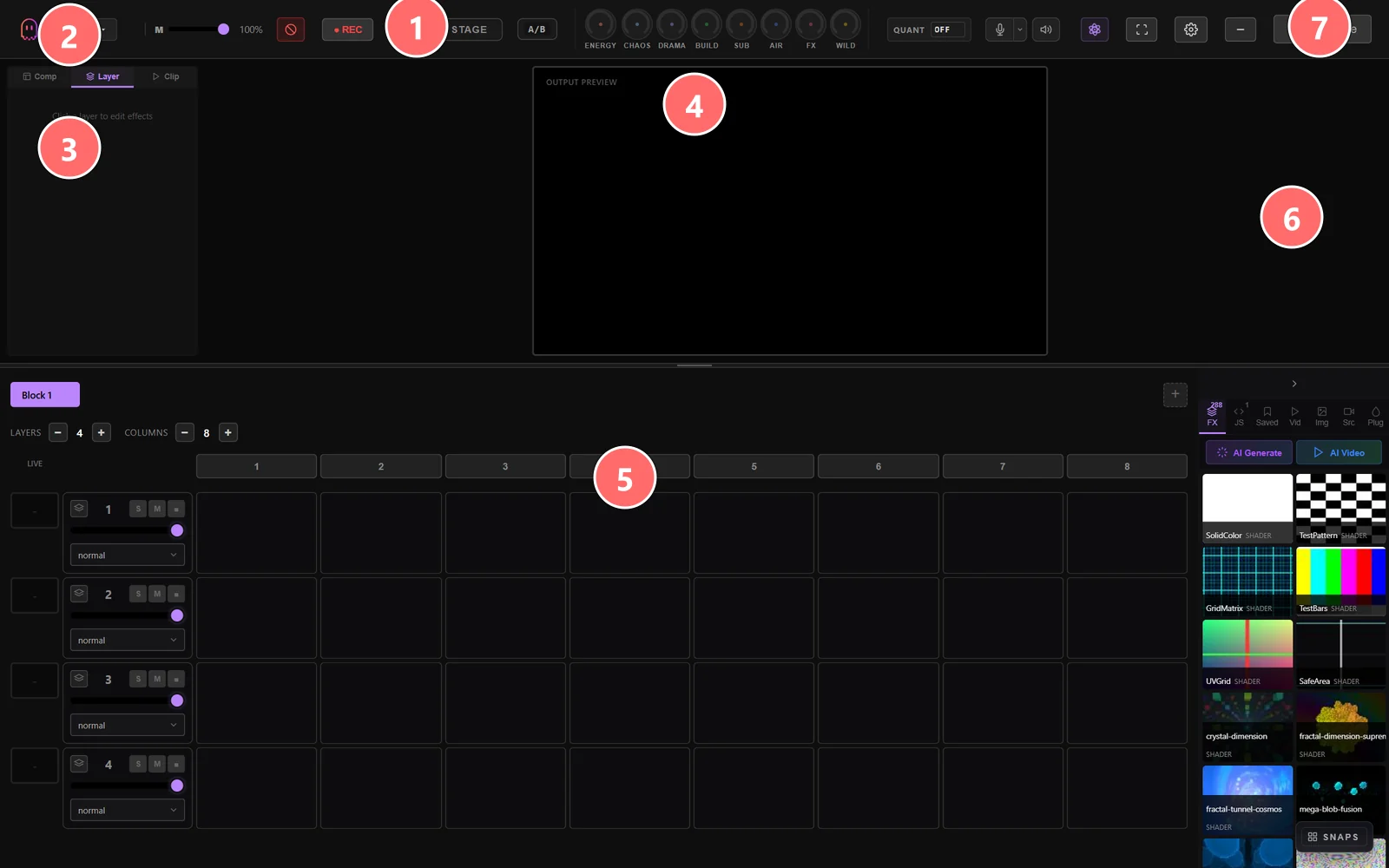
- 1Performance toolbar — REC, MIX / STAGE / A-B crossfader switch, master ENERGY/CHAOS/DRAMA/BUILD/SUB/AIR/FX/WILD macro knobs, QUANT toggle.
- 2Comp / Layer / Clip tabs — switch what the left panel shows: full Compositions list, per-layer FX rack, or current Clip details.
- 3Block 1 — the current composition / block. Compositions store sets of clips + layer states you can recall instantly.
- 4Output preview — live composited output of all active VJ layers, separate from the editor canvas.
- 5Clip launcher grid — N layers x M columns of clips. Click any cell to load and trigger; layers crossfade according to opacity sliders.
- 6FX library — same media browser as the editor: shaders, JS, presets, video, images, screen sources, plugins. Drag clips into the grid.
- 7Exit VJ Mode — return to the mapping editor; layer state is preserved.
Clip Grid
The clip grid is the core of VJ Mode. Add or remove layers (rows) and columns at any time using the LAYERS / COLUMNS counters — the grid scales up to 32 layers by 64 columns. Each slot can hold any layer type supported by Ghost Arcade: shaders, media files, 3D models, splats / point clouds, text, SVG, screen capture, or any other content source.
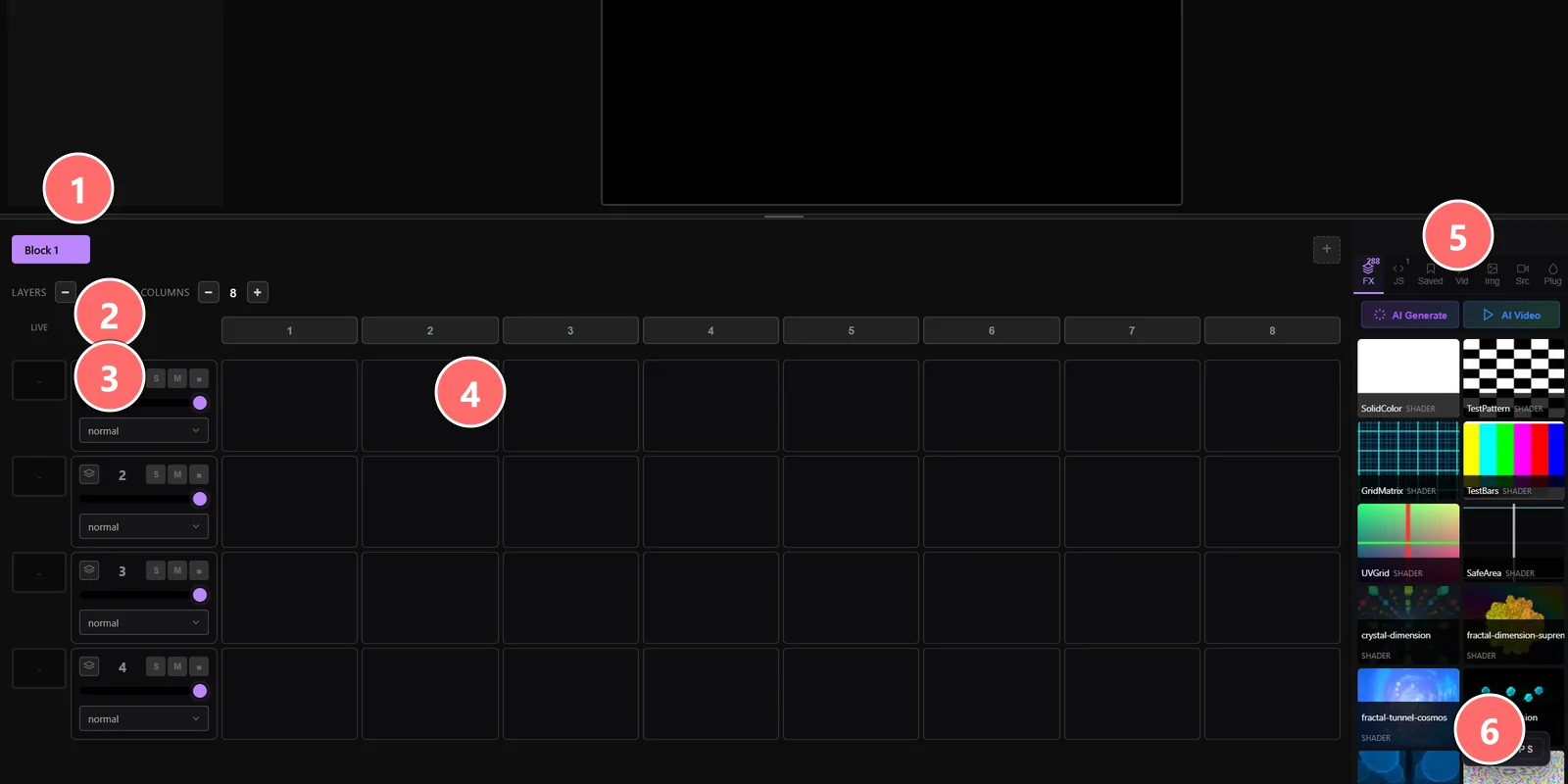
- 1LAYERS / COLUMNS counters — add or remove launcher rows and columns on the fly (max 32 layers x 64 columns).
- 2S / M / + per layer — Solo, Mute, and add to MIX bus. Solo isolates one layer; Mute silences it.
- 3Blend Mode dropdown — per-layer composite mode (normal, add, multiply, screen, overlay, plus 18 more) applied to that layer’s clips.
- 4Clip cell — empty cells accept any media library item (drag or click-then-pick). Loaded cells show a thumbnail and trigger on click.
- 5FX library (right) — same content browser as editor. Filter by FX, JS, Saved, Img, Vid, Src, Plug.
- 6SNAPS — capture the current state of all layers / clips / parameters into a numbered snapshot you can recall later.
To load a clip, click an empty slot to open the FX picker, or drag a clip from the FX library on the right. The slot stores the complete layer configuration, including all parameters, effects, and blend settings. This means each clip is self-contained and ready to perform the moment you trigger it.
Click a slot to trigger the clip on that layer. The active clip highlights to show what is currently live. Click the same slot again to stop it. Only one clip per layer plays at a time. When you trigger a new clip on a layer that already has one active, the transition between them is governed by the crossfade setting.
Crossfades
When you switch between clips on the same layer, VJ Mode can smoothly crossfade from the outgoing clip to the incoming one. This prevents hard cuts and keeps your visuals fluid during a performance.
The crossfade duration is adjustable per layer. Set it to zero for instant switching or increase it for long, cinematic dissolves. During the crossfade, both the old and new clip render simultaneously, with their opacities blending over the configured duration.
Compositions
A composition is a snapshot of the current state of all active clips across every layer. It captures which clip is playing on each row, so you can recall an entire visual scene with a single click.
Use compositions to build discrete visual moments for your set. For example, save one composition for a verse, another for the chorus, and a third for the drop. During the performance, switch between compositions to move through your visual arrangement in sync with the music.
To save a composition, set up the clips you want active on each layer, then click the save button in the compositions panel. Give it a name and it becomes available for instant recall. Compositions can be reordered, renamed, and overwritten as your set evolves.
Snapshots
Snapshots go deeper than compositions. Where a composition stores which clips are active, a snapshot saves the complete multi-layer configuration: all parameter values, effect chains, blend modes, warp settings, and layer ordering. Capture them with the SNAPS row at the bottom of the clip grid.
Think of snapshots as entire scene files you can switch between during a live show. Use them for song-level transitions. Your opening song might use a minimal black-and-white shader setup, while the next track calls for full-color 3D models with heavy post-processing. Each of those is a different snapshot, and switching between them is instantaneous.
Snapshots are saved with the project file and persist between sessions. You can build your entire show in advance and load it on performance day with confidence that everything is exactly where you left it.
Layer Sequencer
The layer sequencer adds timeline-based automation to VJ Mode. It syncs to BPM and lets you program clip transitions and layer visibility changes on a beat grid.
Set your BPM (manually or via tap tempo) and the sequencer quantizes all events to the beat grid. You can configure the time signature to match your music: 4/4 for standard electronic, 3/4 for waltz-time, or any other meter you need.
Place clip triggers on the timeline to automate which clips fire and when. Automate layer visibility to bring layers in and out on specific beats. The sequencer loops over a configurable bar count, giving you repeating visual patterns that stay locked to the rhythm.
The sequencer runs alongside manual clip triggering. You can let it handle the foundational rhythm while you improvise on top with live clip changes and composition recalls.
Audio Integration in VJ Mode
Connect a microphone or system audio input to make your visuals react to sound in real time. Ghost Arcade analyzes the incoming audio signal for beat detection, frequency bands, and overall amplitude.
In VJ Mode, audio reactivity can drive clip triggering: configure a clip to fire on detected beats so the visuals follow the kick drum or snare. You can also route audio data into parameter modulation, letting the bass frequencies control a shader parameter or the treble drive an effect intensity.
Audio settings are configured in the MIDI & Audio panel. See the MIDI & Audio documentation for detailed setup instructions and routing options.
Tips for Live Performance
- Pre-load all clips before the show. Load every clip slot in advance so there is no file I/O during the performance. This ensures instant triggering with zero lag.
- Use compositions for song sections. Map your verse, chorus, bridge, and drop to separate compositions. Switch between them to follow the musical structure without scrambling to trigger individual clips.
- Use snapshots for song transitions. When moving between tracks with different visual aesthetics, recall a snapshot to swap the entire layer configuration at once instead of adjusting individual layers.
- Set up MIDI triggers for hands-free operation. Map clip slots, compositions, and snapshots to MIDI controller buttons. This frees you from the mouse and lets you perform visuals with physical hardware, keeping your eyes on the projection.
- Layer the sequencer with manual triggering. Let the sequencer handle repetitive rhythmic patterns on one or two layers while you manually trigger accent clips and compositions on the remaining layers. This gives your set a consistent pulse with room for improvisation.
- Test your crossfade durations in rehearsal. Different content types look better with different crossfade times. Shader-to-shader transitions can be fast, while 3D model swaps often benefit from a longer dissolve. Dial these in before showtime.