Getting Started
Everything you need to install Ghost Arcade, understand the interface, and create your first project. This guide walks through setup, core concepts, and the essential shortcuts that will speed up your workflow.
System Requirements
Ghost Arcade runs on modern Windows and macOS machines with a GPU that supports WebGL 2.0. For smooth performance at higher resolutions, a dedicated graphics card is strongly recommended.
- OS: Windows 10 or later, macOS 12 Monterey or later
- GPU: Any GPU with WebGL 2.0 support (integrated graphics work for basic use)
- RAM: 8 GB minimum recommended (16 GB for complex projects with 3D models and splats)
- Display: 1280 x 720 minimum; 1920 x 1080 or higher recommended
- Storage: ~200 MB for the application, plus space for your media assets
TIP To check WebGL 2.0 support, visit webglreport.com in your browser. Look for “WebGL 2.0” in the header.
Installation
Download
Download the latest installer for your platform from ghostarcade.live/download. Windows users will receive an .exe installer; macOS users will receive a .dmg disk image.
Run the Installer
- Windows: Double-click the installer and follow the prompts. If SmartScreen appears, click “More info” then “Run anyway” — the app is code-signed but may not yet be widely recognized.
- macOS: Open the
.dmgfile and drag Ghost Arcade into your Applications folder. On first launch, right-click the app and select “Open” to bypass Gatekeeper.
First Launch
On first launch the app opens with a blank canvas and a single empty layer. The interface may request permission to access your display list for multi-projector output — grant this to enable fullscreen projection on external displays.
Interface Overview
The interface is divided into six main regions.
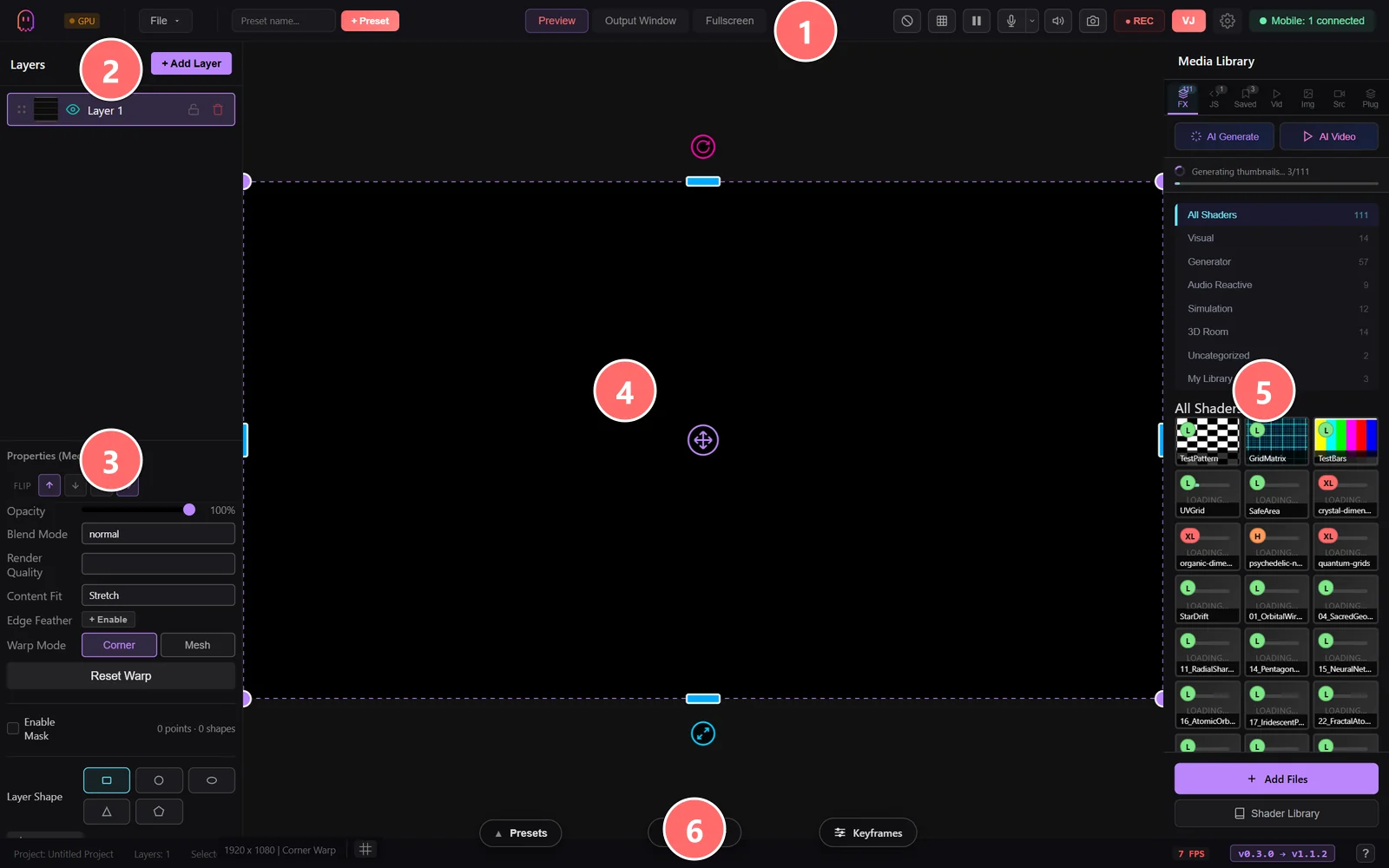
- 1Top toolbar — file actions, preset bar, mode switching (Preview / Output Window / Fullscreen), recording, VJ mode, settings, and the mobile-companion status pill.
- 2Layer panel — every layer in the project, top-down render order. Each row has visibility, lock, and delete controls. + Add Layer creates a new one.
- 3Properties panel — adapts to the selected layer type. Opacity, blend mode, content fit, warp, masking, and the per-layer effect chain all live here.
- 4Canvas — live composited output. The dashed border shows the canvas bounds; the magenta handles are the corner-warp control points.
- 5Media library — searchable browser for built-in shaders, JS animations, your saved presets, images, videos, screen sources, and plugins. AI Generate buttons produce custom shaders and video clips.
- 6Bottom rail — collapsible Presets, Sequencer, and Keyframes panels for performance automation. Status bar shows project info, FPS, and version on the right.
Main Canvas
The central viewport shows your composited output in real time. This is where you preview your layers, adjust warping, and see the final result before it hits your projector or recording.
Layer Panel (Left Sidebar)
The left sidebar lists all layers in your project. Layers render bottom-to-top — the top layer in the list draws on top of everything below it. From here you can add, reorder, rename, solo, mute, and delete layers. Each layer shows a thumbnail preview and its blend mode.
Properties Panel (Right Sidebar)
Select any layer to see its full set of controls on the right. The properties panel adapts to the selected layer type — shader layers expose ISF parameters and presets, media layers show playback controls, 3D model layers provide camera, lighting, and animation settings. Effects chains are managed here as well.
Toolbar
The top toolbar provides quick access to project actions: new project, save, undo/redo, mode switching (Mapping, VJ, Performer), and display output controls.
Output Controls
At the bottom of the interface you will find output resolution settings, FPS display, fullscreen output toggle, Spout sender controls, and the screen recording button. Use these to send your visuals to a projector, capture to video, or share via Spout to other applications.
Your First Project
Follow these steps to build a simple layered composition from scratch.
1. Add a Layer
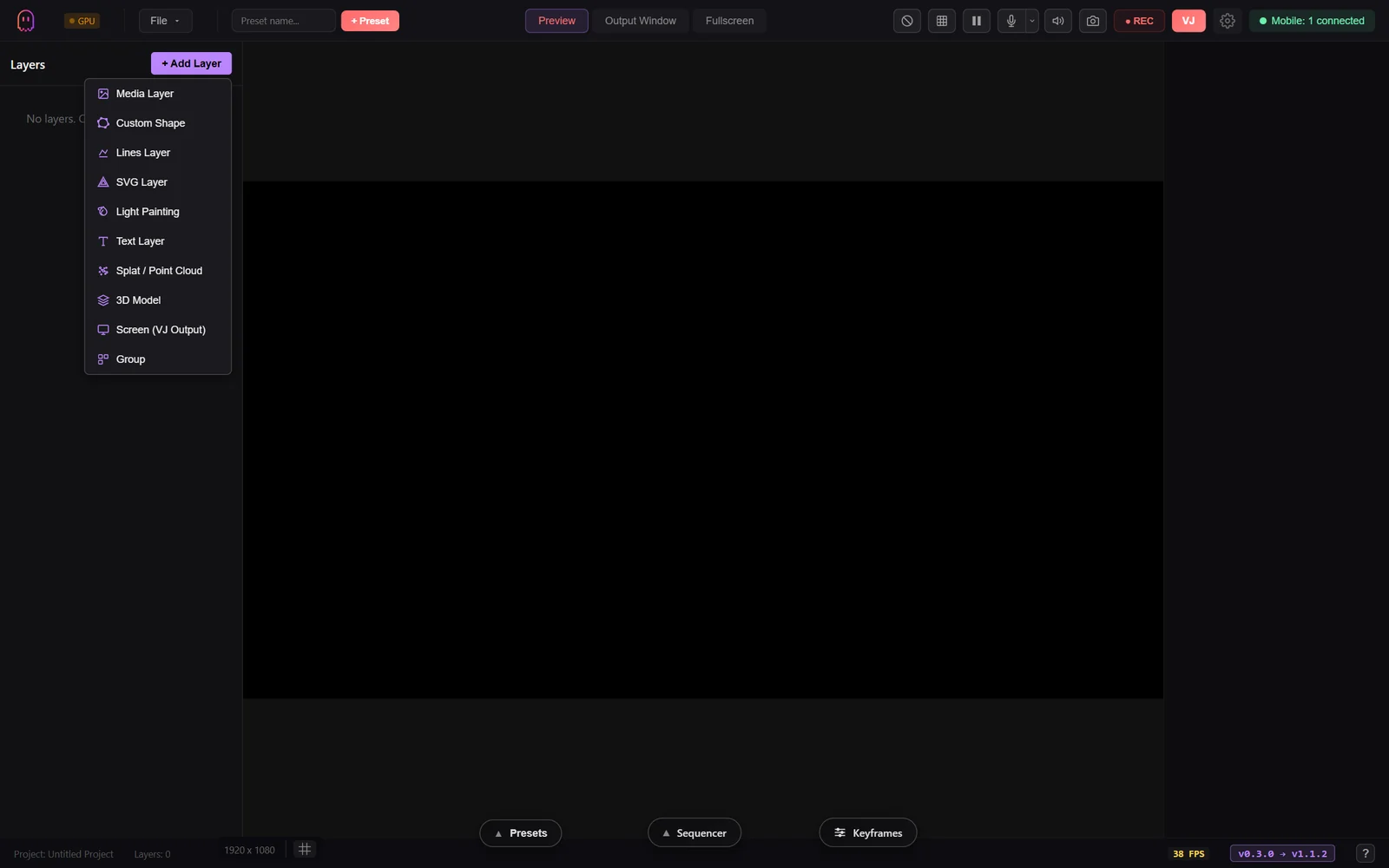
Click + Add Layer at the top of the layer panel and pick a layer type. The dropdown offers eleven entries — start with Media Layer for a shader, video, or image, or pick from the others to bring in a custom shape, lines, SVG, light painting, text, point cloud, 3D model, GPU shader, screen capture, or a group container.
Once the layer exists, the Media Library on the right is where you load content into it. The FX tab holds 200+ ready-to-use GLSL/ISF shaders organized by category. Select a layer, then click a thumbnail to apply that shader to it.
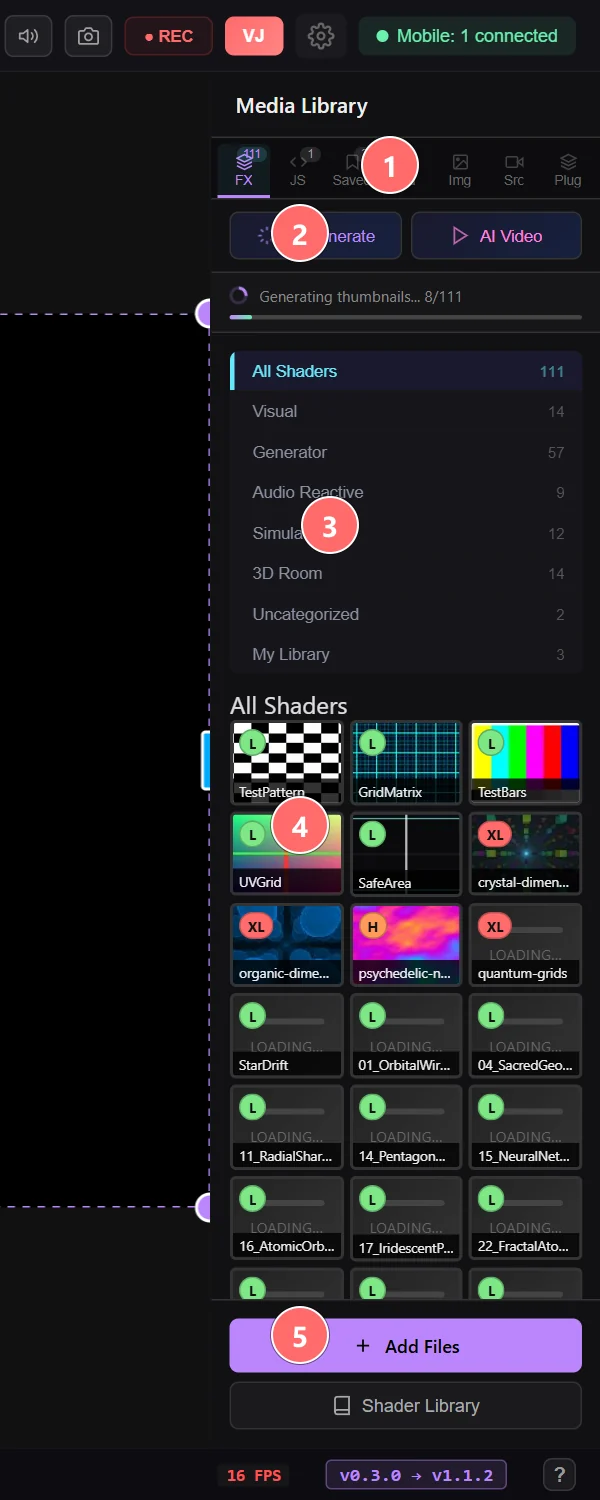
- 1Source tabs — switch between effects, JS animations, saved presets, images, videos, screen sources, and plugins.
- 2AI Generate — describe a visual in plain English and Claude generates a custom GLSL shader; AI Video calls Luma to generate a clip. Bring your own API keys.
- 3Categories — filter shaders by what they do: Visual, Generator, Audio Reactive, Simulation, 3D Room, or your own saved library.
- 4Shader grid — click any thumbnail to apply it to the selected layer. L / XL badges indicate the shader's GPU cost.
- 5+ Add Files — drop in your own shader files (.fs / .frag / .vs ISF, GLSL, or HLSL).
2. Adjust Parameters
With the layer selected, open the properties panel on the left. Layer-wide controls live at the top (opacity, blend mode, warp, masking, shape). Content-specific controls — shader uniforms, playback speed, model materials — appear in their own sections below. Drag sliders or click any number to see changes in real time.
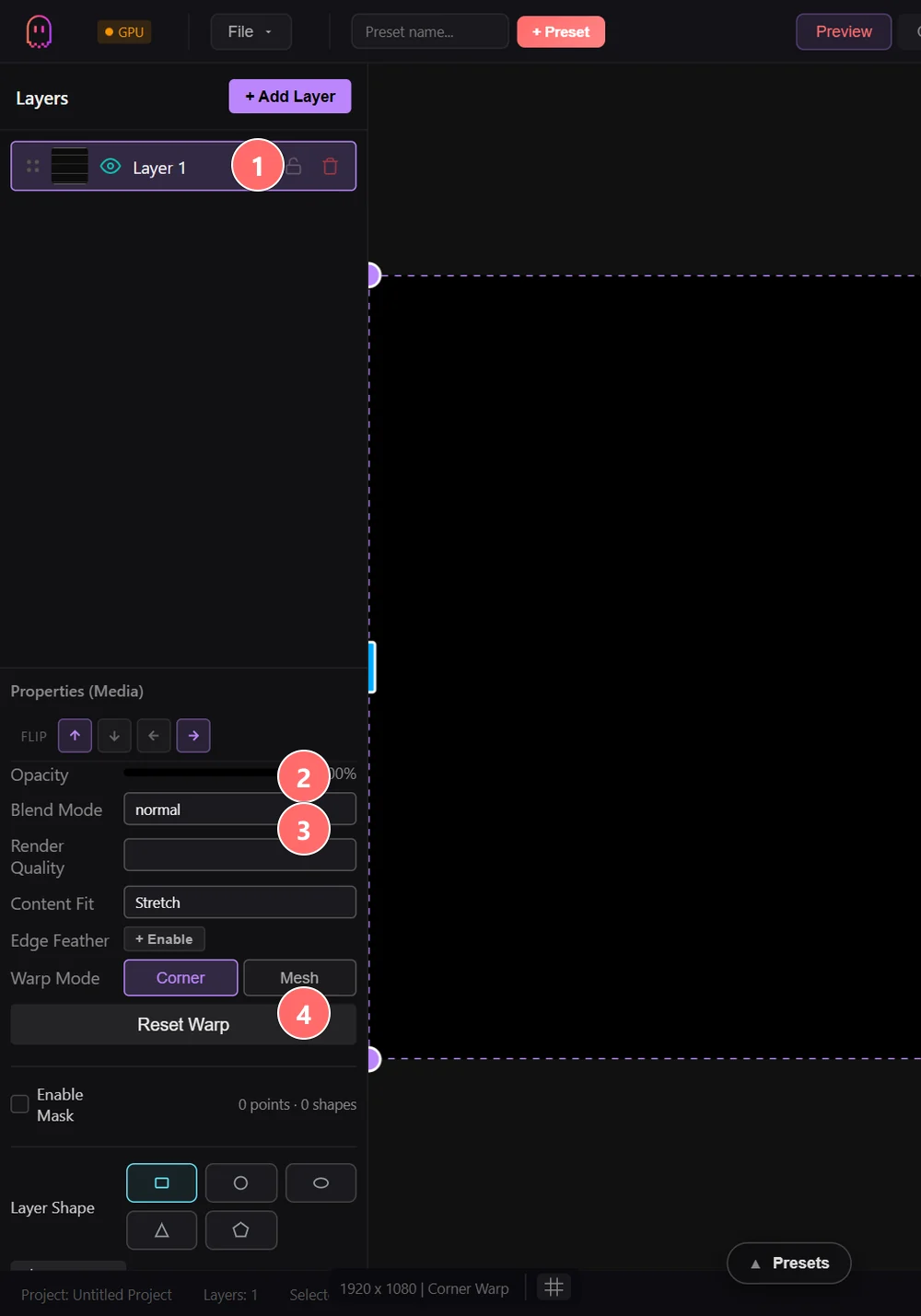
- 1Layer row — click the eye to toggle visibility, the padlock to prevent edits, the trash to delete. Drag the handle on the left to reorder.
- 2Opacity — global fade for the entire layer (0–100%).
- 3Blend Mode — how the layer composites with everything below it. 25 modes from Normal/Add/Multiply/Screen/Overlay through Vivid Light and Pin Light.
- 4Warp Mode — Corner for 4-point projection warp, Mesh for soft fine-grained mapping. Reset Warp removes any warp and snaps back to the canvas rectangle.
3. Add a Media Layer
Add another layer, this time choosing Media. Drag an image or video file onto the canvas, or use the file browser in the properties panel. Supported formats include PNG, JPG, GIF, MP4, MOV, and WebM.
4. Use Blend Modes
Select your media layer and change its blend mode in the layer panel. Try Add, Multiply, or Screen to see how the two layers interact. Adjust the layer opacity slider to dial in the mix.
5. Add Effects
In the properties panel, scroll to the Effects section and click+ Add Effect. Choose from 200+ effects across categories like blur, color, distortion, glitch, feedback, atmosphere, light, geometric 3D, and more. Effects are chainable — drag to reorder them, and each effect has its own parameter controls.
TIP Save your project often with Ctrl+S (or Cmd+S on macOS). Projects save as .gha files that preserve all layers, effects, and settings.
Keyboard Shortcuts
These shortcuts work globally while the application window is focused. On macOS, substitute Cmd for Ctrl.
| Shortcut | Action |
|---|---|
Ctrl + S | Save project |
Ctrl + Z | Undo last action |
Ctrl + Y / Ctrl + Shift + Z | Redo |
Ctrl + C | Copy selected layer(s) |
Ctrl + V | Paste layer(s) |
Ctrl + D | Duplicate selected layer |
Delete / Backspace | Delete selected layer |
Space (hold) | Pan the viewport |
Esc | Exit drawing / edit mode |
? | Open the keyboard-shortcuts overlay |
B | Blackout toggle |
T | Cycle test patterns |
1 – 9 / 0 | Trigger VJ columns 1–10 (VJ mode only) |
F1 – F8 | Switch VJ blocks 1–8 (VJ mode only) |
NOTE In VJ Mode and Performer (SynthVision), the number / function / letter keys are remapped to clip triggering and key-slot triggers. Global shortcuts like Ctrl+S and Ctrl+Z still work in all modes.
License
Ghost Arcade is a single open-source product released under the GNU Affero General Public License v3.0 (AGPL-3.0-only). There are no Pro tiers, no Community tiers, no paywalls, no watermarks, and no license activation. Every feature — layers, effects, VJ mode, SynthVision, MIDI, audio reactivity, projection mapping, recording, Spout output, and the mobile companion — is available to everyone, free.
Output you create with Ghost Arcade — videos, livestreams, recordings, and projected visuals — is yours, and is not subject to AGPL. The AGPL covers the source code of Ghost Arcade itself, not your art.
Source, issues, and contributions: github.com/riskcapital/ghost-arcade.
Next Steps
Now that you are up and running, explore the rest of the documentation to go deeper.